
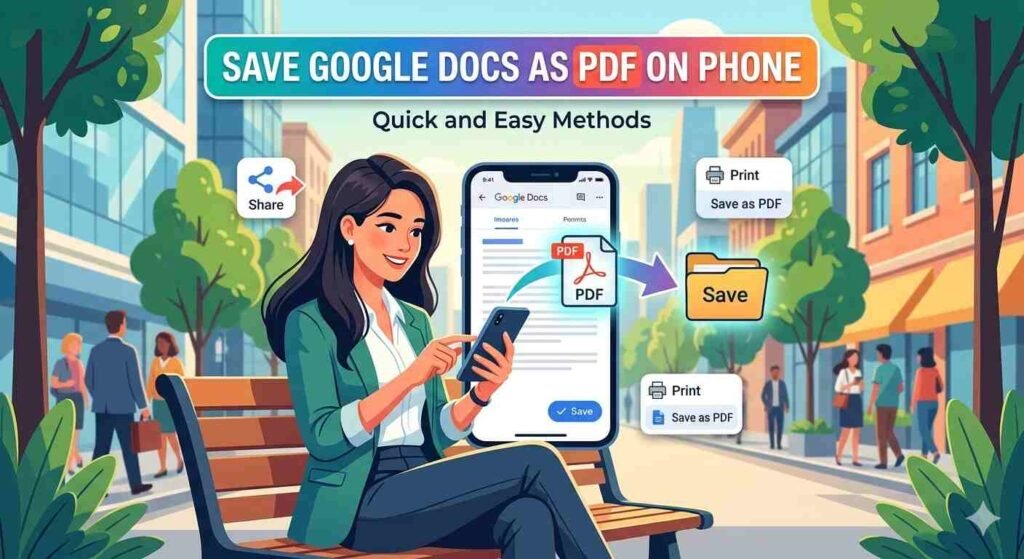

In today’s mobile-first world, being able to manage documents directly from your smartphone is more important than ever. Whether you’re a student submitting assignments, a professional sharing reports, or just someone organizing files, knowing how to Save Google Docs as PDF on Phone can save time and improve productivity.
PDF files are widely preferred because they preserve formatting, are easy to share, and look consistent across all devices. Fortunately, converting a Google Doc into a PDF on your phone is simple once you know the right steps.
This guide walks you through quick and easy methods for both Android and iPhone users, along with tips to avoid common mistakes.
Why Save Google Docs as PDF?
Before diving into the steps, it helps to understand why people prefer PDFs over editable documents.
Here are a few key reasons:
- Consistent formatting: PDFs maintain layout and design across all devices
- Professional presentation: Ideal for resumes, reports, and official documents
- Security: Harder to edit compared to Word or Docs files
- Easy sharing: Compatible with almost every platform
That’s why many users frequently look for ways to Save Google Docs as PDF on Phone without needing a computer.
Method 1: Using the Google Docs App (Android & iPhone)
The easiest way to convert a document is directly within the Google Docs app.
Step-by-Step Guide:
- Open the Google Docs app on your phone
- Select the document you want to convert
- Tap the three dots (menu icon) in the top-right corner
- Tap “Share & export”
- Select “Save as”
- Choose PDF Document (.pdf)
- Tap OK or Save
Your file will now be saved as a PDF on your device.
This is the most straightforward method to Save Google Docs as PDF on Phone, especially for beginners.
Method 2: Download as PDF and Share
Another quick option is to download the PDF and share it instantly.
Steps:
- Open your document in the Google Docs app
- Tap the three dots menu
- Select Share & export
- Tap Send a copy
- Choose PDF format
- Select an app (Gmail, WhatsApp, Drive, etc.) to share or save
This method is useful if your main goal is to send the PDF rather than store it locally.
Method 3: Save as PDF via Print Option
Many people don’t realize that the print feature can also convert documents into PDFs.
Steps:
- Open your document
- Tap the three dots menu
- Select Share & export → Print
- Choose Save as PDF from the printer options
- Tap the download/save icon
This trick works well if you want more control over layout settings before saving.
Method 4: Using Google Drive
If your document is stored in Google Drive, you can also convert it from there.
Steps:
- Open Google Drive
- Locate your document
- Tap the three dots next to the file
- Tap Send a copy
- Choose PDF
- Save or share the file
This is another convenient way to Save Google Docs as PDF on Phone, especially when managing multiple files.
Tips for Better PDF Conversion
To ensure your PDF looks professional and error-free, keep these tips in mind:
1. Check Formatting Before Converting
Make sure headings, images, and spacing look correct in the document.
2. Use Page Setup
Adjust margins and orientation for better readability.
3. Preview Before Saving
Always preview the file to catch formatting issues.
4. Use Clear File Names
Rename your PDF for easy identification later.
Common Issues and How to Fix Them
Even though the process is simple, users sometimes face issues.
Formatting Problems
Solution: Adjust spacing and fonts before converting.
File Not Saving
Solution: Check storage permissions or internet connection.
Missing Images
Solution: Ensure all images are properly loaded before saving.
Benefits of Using Mobile for PDF Conversion
Being able to Save Google Docs as PDF on Phone offers several advantages:
- No need for a laptop or desktop
- Faster sharing on messaging apps
- Convenient for on-the-go work
- Easy cloud integration
Mobile tools have made document management more flexible than ever.
When Should You Use PDF Instead of Google Docs?
Use PDF format when:
- Sending official documents
- Submitting assignments or reports
- Sharing resumes or portfolios
- Preventing editing by others
Editable Docs are better for collaboration, but PDFs are ideal for final versions.
Final Thoughts
Learning how to Save Google Docs as PDF on Phone is a simple yet powerful skill that can make your daily tasks much easier. Whether you’re working, studying, or managing personal files, converting documents into PDFs ensures better compatibility and presentation.
With multiple methods available—from direct app conversion to print options—you can choose the one that best fits your needs. The process takes just a few taps, but the convenience it offers is significant.
FAQs
1. Can I save Google Docs as PDF on both Android and iPhone?
Yes, the steps are almost identical on both platforms using the Google Docs app.
2. Is it free to convert Google Docs to PDF?
Yes, Google Docs allows free PDF conversion on mobile devices.
3. Where are saved PDFs stored on my phone?
They are usually saved in your device storage or Downloads folder, depending on your settings.
4. Can I edit the PDF after saving?
PDFs are not easily editable, but you can use PDF editing apps if needed.
5. What is the easiest way to Save Google Docs as PDF on Phone?
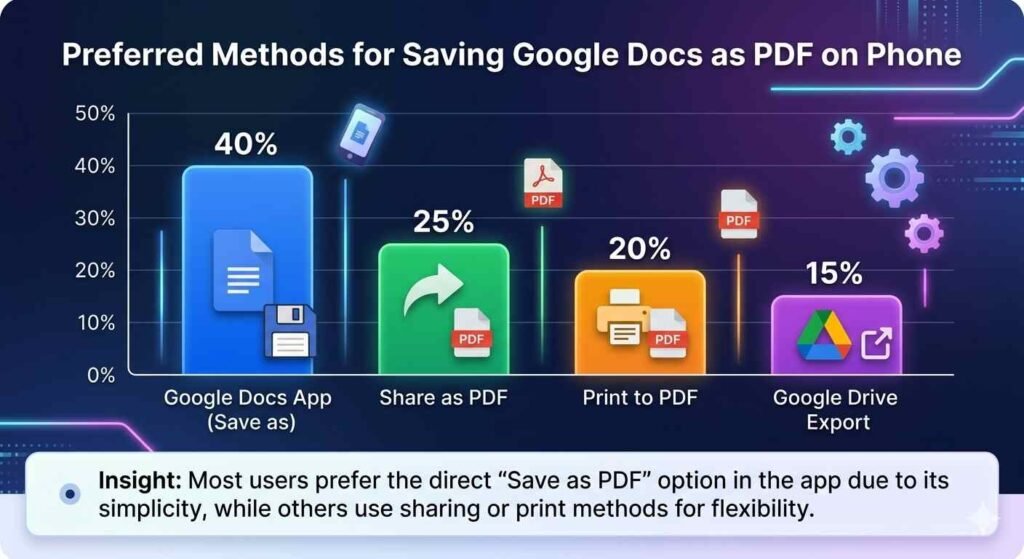
The easiest method is using the “Save as” option directly inside the Google Docs app.